> ## Documentation Index
> Fetch the complete documentation index at: https://docs.heyfred.nl/llms.txt
> Use this file to discover all available pages before exploring further.
# Voys Integration
> A step by step guide to connect to your Voys.nl account via SIP trunking
This guide explains how to provision and configure a SIP trunk from [Voys.nl](https://www.voys.nl/) (*also known through partners such as [Verbonden.nl](https://verbonden.nl/), [Eigennummer.nl](https://www.eigennummer.nl/), [Annabel.nl](https://bellenmetannabel.nl/)*) so you can connect the Heyfred platform to their network. A SIP trunk allows your PBX to make and receive calls via the Voys VoIP network.
**Before starting, ensure you have:**
* An active account with Voys.nl or its partner (*e.g., Verbonden.nl*)
* One or more phone numbers registered in your account
* Access to the Voys administration portal (Freedom)
## Step 1: Create SIP Trunking
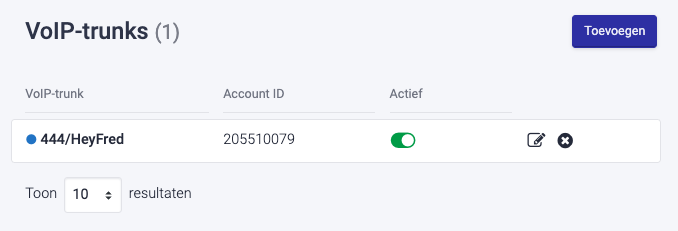
1. Log in to the Freedom portal at [https://freedom.voys.nl](https://freedom.voys.nl).
2. Go to **Manage** (Beheer).
3. Select **VoIP-Trunk**.
4. Click **Add VoIP Trunk**. Give it a descriptive name to identify it.
5. Enter the number of simultaneous channels you need.
6. Optionally configure the **internal extension number**, **caller ID behaviour** and **call restrictions**. Choose the correct **phonenumber** at "Outgoing number (Caller ID)".
7. Save the trunk. You’ll now have an **Account ID** and **Password** generated, which you’ll use in your PBX configuration.
 ## Step 2: Configure the SIP Trunk in HeyFred
1. In HeyFred, go to **Phone Numbers** and then select **Your phone numbers**.
2. Choose **Integrate SIP Trunk**.
## Step 2: Configure the SIP Trunk in HeyFred
1. In HeyFred, go to **Phone Numbers** and then select **Your phone numbers**.
2. Choose **Integrate SIP Trunk**.
 3. For **SIP Trunk type**, select **SIP Extension**.
4. **Your SIP extension** is your Trunk extension number.
5. Under **Authentication**, enter the **username** (Account ID) and **password** obtained in Step 1.
3. For **SIP Trunk type**, select **SIP Extension**.
4. **Your SIP extension** is your Trunk extension number.
5. Under **Authentication**, enter the **username** (Account ID) and **password** obtained in Step 1.
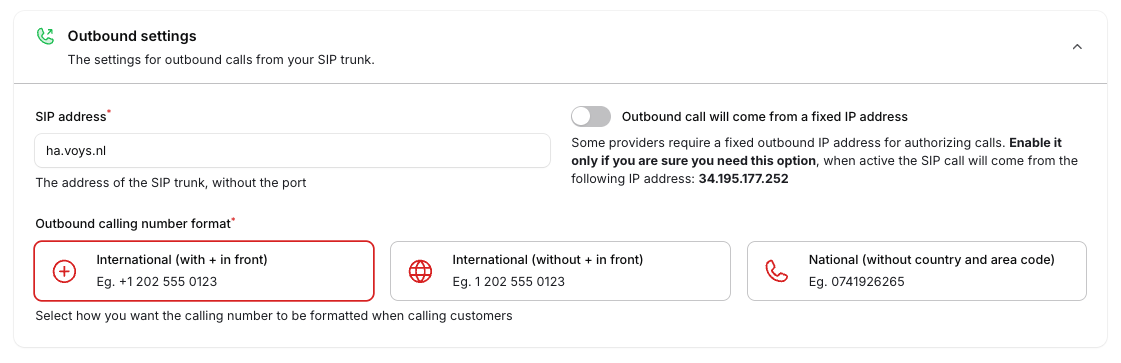
 6. Under **Outbound settings**, set the SIP Address to `ha.voys.nl`.
7. For **Outbound calling** number format, select **International** (with + in front).
Example: `+31 202555012`
6. Under **Outbound settings**, set the SIP Address to `ha.voys.nl`.
7. For **Outbound calling** number format, select **International** (with + in front).
Example: `+31 202555012`
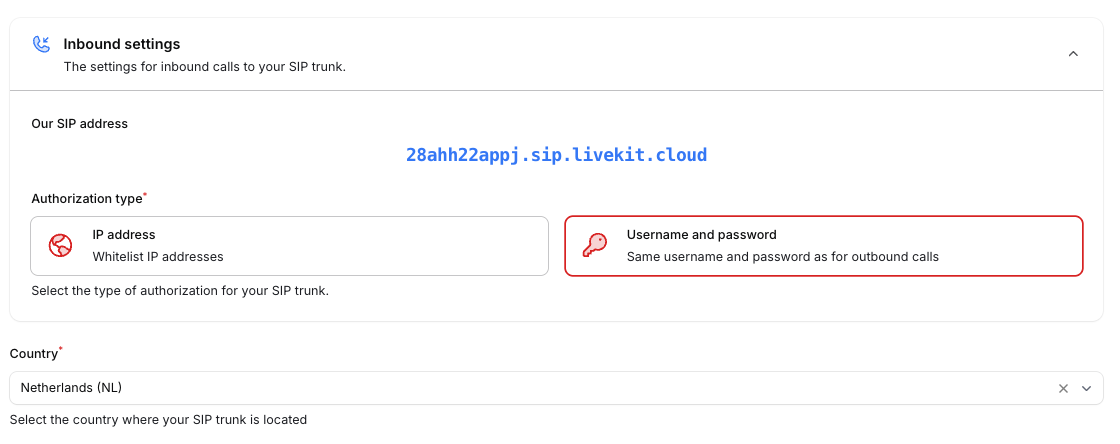
 8. Under **Inbound settings**, take note of the value shown at **Our SIP address**.
*You will need this address or URL in the next step*
Example: `28ahh22appj.sip.livekit.cloud`
9. Set the **Authorization type** to **Username** and **Password**.
10. Set **Country** to the country where your phone number is active, typically **The Netherlands**.
8. Under **Inbound settings**, take note of the value shown at **Our SIP address**.
*You will need this address or URL in the next step*
Example: `28ahh22appj.sip.livekit.cloud`
9. Set the **Authorization type** to **Username** and **Password**.
10. Set **Country** to the country where your phone number is active, typically **The Netherlands**.
 Click **Submit** to save the configuration.
## Step 3: Update the Configuration in the Voys Freedom Portal
1. Go back to **VoIP Trunks** in the **Freedom portal** at\
[https://freedom.voys.nl](https://freedom.voys.nl).
2. Select the created or assigned **SIP Trunk**.
3. Navigate to **Advanced (SIP) settings**.
4. Locate the **Static hostname** field and enter the **Our SIP address** obtained in Step 2.
Example: `28ahh22appj.sip.livekit.cloud`
5. Click **Save** to apply the changes.
Click **Submit** to save the configuration.
## Step 3: Update the Configuration in the Voys Freedom Portal
1. Go back to **VoIP Trunks** in the **Freedom portal** at\
[https://freedom.voys.nl](https://freedom.voys.nl).
2. Select the created or assigned **SIP Trunk**.
3. Navigate to **Advanced (SIP) settings**.
4. Locate the **Static hostname** field and enter the **Our SIP address** obtained in Step 2.
Example: `28ahh22appj.sip.livekit.cloud`
5. Click **Save** to apply the changes.
 ### 🎉 Go Live: Activating the SIP Trunk Integration
After completing the technical configuration, a few final steps are required to make the integration fully operational for live traffic.
#### A. Enable Incoming Calls via the Voys Dial Plan
To ensure incoming calls are correctly delivered to HeyFred:
1. Log in to the **Voys Freedom portal**.
2. Navigate to **Dial Plans (Belplannen)**.
3. Create or edit the dial plan associated with the correct phone number.
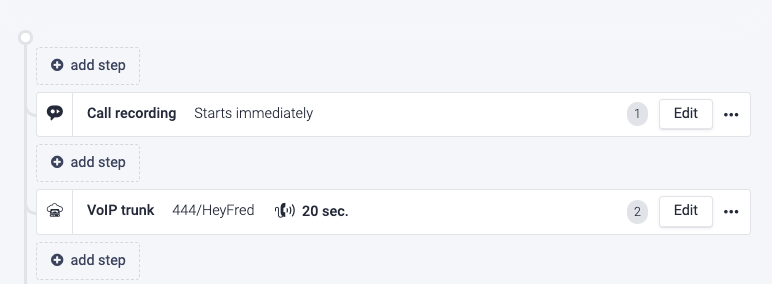
4. Configure the call flow so that the **SIP Trunk** you created is selected as the **final destination**.
5. Save the dial plan.
This step ensures that inbound calls to your Voys number are routed to HeyFred via the SIP trunk.
### 🎉 Go Live: Activating the SIP Trunk Integration
After completing the technical configuration, a few final steps are required to make the integration fully operational for live traffic.
#### A. Enable Incoming Calls via the Voys Dial Plan
To ensure incoming calls are correctly delivered to HeyFred:
1. Log in to the **Voys Freedom portal**.
2. Navigate to **Dial Plans (Belplannen)**.
3. Create or edit the dial plan associated with the correct phone number.
4. Configure the call flow so that the **SIP Trunk** you created is selected as the **final destination**.
5. Save the dial plan.
This step ensures that inbound calls to your Voys number are routed to HeyFred via the SIP trunk.
 #### B. Connect the Phone Number to the Correct AI Agent in HeyFred
To ensure calls are handled by the correct AI agent:
1. In **HeyFred**, go to the **AI Agent** configuration.
2. Select the agent that should handle inbound and or outbound calls.
3. Choose the **available phone number** that is connected via the SIP trunk.
4. Assign this number to the agent for **incoming calls**, **outgoing calls** (*or both*) depending on your use case.
5. Save the agent configuration.
#### B. Connect the Phone Number to the Correct AI Agent in HeyFred
To ensure calls are handled by the correct AI agent:
1. In **HeyFred**, go to the **AI Agent** configuration.
2. Select the agent that should handle inbound and or outbound calls.
3. Choose the **available phone number** that is connected via the SIP trunk.
4. Assign this number to the agent for **incoming calls**, **outgoing calls** (*or both*) depending on your use case.
5. Save the agent configuration.
 This links the SIP trunk number to the correct AI agent, allowing HeyFred to intelligently handle live calls end to end.
Once both steps are completed, the integration is live and ready to process calls through Voys or Verbonden using HeyFred AI.
## Common Issues
* Lorem Ipsum is simply dummy text of the printing and typesetting industry. Lorem Ipsum has been the industry's standard dummy text ever since the 1500s, when an unknown printer took a galley of type and scrambled it to make a type specimen book. It has survived not only five centuries, but also the leap into electronic typesetting, remaining essentially unchanged. It was popularised in the 1960s with the release of Letraset sheets containing Lorem Ipsum passages, and more recently with desktop publishing software like Aldus PageMaker including versions of Lorem Ipsum.
This links the SIP trunk number to the correct AI agent, allowing HeyFred to intelligently handle live calls end to end.
Once both steps are completed, the integration is live and ready to process calls through Voys or Verbonden using HeyFred AI.
## Common Issues
* Lorem Ipsum is simply dummy text of the printing and typesetting industry. Lorem Ipsum has been the industry's standard dummy text ever since the 1500s, when an unknown printer took a galley of type and scrambled it to make a type specimen book. It has survived not only five centuries, but also the leap into electronic typesetting, remaining essentially unchanged. It was popularised in the 1960s with the release of Letraset sheets containing Lorem Ipsum passages, and more recently with desktop publishing software like Aldus PageMaker including versions of Lorem Ipsum.
 {" "}
* Lorem Ipsum is simply dummy text of the printing and typesetting industry. Lorem Ipsum has been the industry's standard dummy text ever since the 1500s, when an unknown printer took a galley of type and scrambled it to make a type specimen book. It has survived not only five centuries, but also the leap into electronic typesetting, remaining essentially unchanged. It was popularised in the 1960s with the release of Letraset sheets containing Lorem Ipsum passages, and more recently with desktop publishing software like Aldus PageMaker including versions of Lorem Ipsum.
{" "}
* Lorem Ipsum is simply dummy text of the printing and typesetting industry. Lorem Ipsum has been the industry's standard dummy text ever since the 1500s, when an unknown printer took a galley of type and scrambled it to make a type specimen book. It has survived not only five centuries, but also the leap into electronic typesetting, remaining essentially unchanged. It was popularised in the 1960s with the release of Letraset sheets containing Lorem Ipsum passages, and more recently with desktop publishing software like Aldus PageMaker including versions of Lorem Ipsum.
 {" "}
***
Need help setting up? Our support team specializes in helping customers integrate their phone systems. We'll guide you through the entire process, ensuring a smooth setup with your specific phone system configuration.
{" "}
***
Need help setting up? Our support team specializes in helping customers integrate their phone systems. We'll guide you through the entire process, ensuring a smooth setup with your specific phone system configuration.