

- An active account with Voys.nl or its partner (e.g., Verbonden.nl)
- One or more phone numbers registered in your account
- Access to the Voys administration portal (Freedom)
Step 1: Create SIP Trunking
- Log in to the Freedom portal at https://freedom.voys.nl.
- Go to Manage (Beheer).
- Select VoIP-Trunk.
- Click Add VoIP Trunk. Give it a descriptive name to identify it.
- Enter the number of simultaneous channels you need.
- Optionally configure the internal extension number, caller ID behaviour and call restrictions. Choose the correct phonenumber at “Outgoing number (Caller ID)”.
- Save the trunk. You’ll now have an Account ID and Password generated, which you’ll use in your PBX configuration.
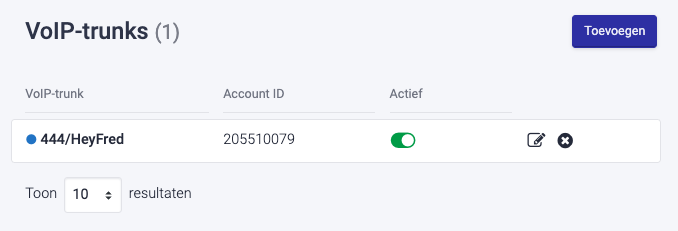
Step 2: Configure the SIP Trunk in HeyFred
- In HeyFred, go to Phone Numbers and then select Your phone numbers.
- Choose Integrate SIP Trunk.

- For SIP Trunk type, select SIP Extension.
- Your SIP extension is your Trunk extension number.
- Under Authentication, enter the username (Account ID) and password obtained in Step 1.

-
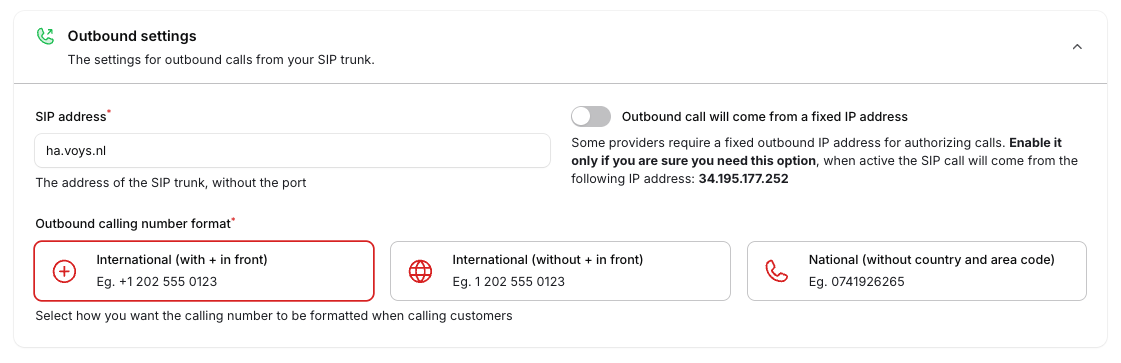
Under Outbound settings, set the SIP Address to
ha.voys.nl. -
For Outbound calling number format, select International (with + in front).
Example:
+31 202555012
-
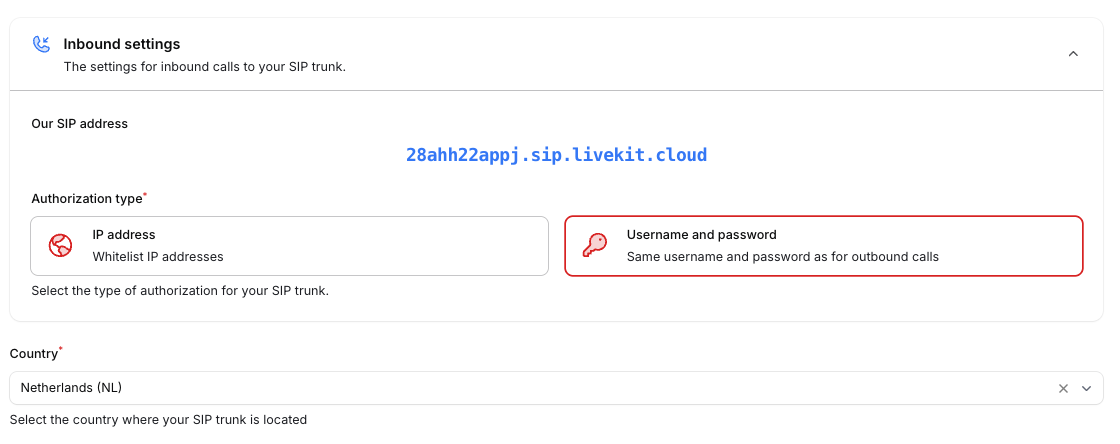
Under Inbound settings, take note of the value shown at Our SIP address.
You will need this address or URL in the next step
Example:
28ahh22appj.sip.livekit.cloud - Set the Authorization type to Username and Password.
- Set Country to the country where your phone number is active, typically The Netherlands.
Step 3: Update the Configuration in the Voys Freedom Portal
-
Go back to VoIP Trunks in the Freedom portal at
https://freedom.voys.nl. - Select the created or assigned SIP Trunk.
- Navigate to Advanced (SIP) settings.
-
Locate the Static hostname field and enter the Our SIP address obtained in Step 2.
Example:
28ahh22appj.sip.livekit.cloud - Click Save to apply the changes.

🎉 Go Live: Activating the SIP Trunk Integration
After completing the technical configuration, a few final steps are required to make the integration fully operational for live traffic.A. Enable Incoming Calls via the Voys Dial Plan
To ensure incoming calls are correctly delivered to HeyFred:- Log in to the Voys Freedom portal.
- Navigate to Dial Plans (Belplannen).
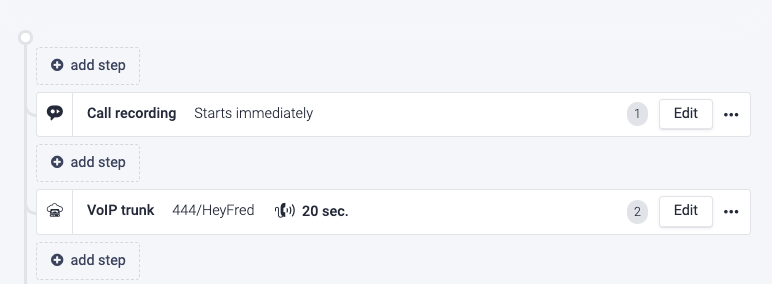
- Create or edit the dial plan associated with the correct phone number.
- Configure the call flow so that the SIP Trunk you created is selected as the final destination.
- Save the dial plan.
B. Connect the Phone Number to the Correct AI Agent in HeyFred
To ensure calls are handled by the correct AI agent:- In HeyFred, go to the AI Agent configuration.
- Select the agent that should handle inbound and or outbound calls.
- Choose the available phone number that is connected via the SIP trunk.
- Assign this number to the agent for incoming calls, outgoing calls (or both) depending on your use case.
- Save the agent configuration.

Common Issues
Issue 1
Issue 1
- Lorem Ipsum is simply dummy text of the printing and typesetting industry. Lorem Ipsum has been the industry’s standard dummy text ever since the 1500s, when an unknown printer took a galley of type and scrambled it to make a type specimen book. It has survived not only five centuries, but also the leap into electronic typesetting, remaining essentially unchanged. It was popularised in the 1960s with the release of Letraset sheets containing Lorem Ipsum passages, and more recently with desktop publishing software like Aldus PageMaker including versions of Lorem Ipsum.

Issue 2
Issue 2
-
Lorem Ipsum is simply dummy text of the printing and typesetting industry. Lorem Ipsum has been the industry’s standard dummy text ever since the 1500s, when an unknown printer took a galley of type and scrambled it to make a type specimen book. It has survived not only five centuries, but also the leap into electronic typesetting, remaining essentially unchanged. It was popularised in the 1960s with the release of Letraset sheets containing Lorem Ipsum passages, and more recently with desktop publishing software like Aldus PageMaker including versions of Lorem Ipsum.

Need help setting up? Our support team specializes in helping customers integrate their phone systems. We’ll guide you through the entire process, ensuring a smooth setup with your specific phone system configuration.